Sarathi Parivahan Mobile Number Update on DL: Aadhaar OTP Fix
Before you start, check one thing: which phone gets your Aadhaar OTP. Sarathi confirms a mobile number change through Aadhaar authentication, so the OTP goes to the number linked to your Aadhaar, not to the old number on your licence. If that phone is lost or switched off, fix Aadhaar first or the update will stop halfway.
MoRTH has asked every driving licence holder and vehicle owner to add or update their mobile number through Aadhaar authentication. Without a working number, renewal alerts, e-challan SMS and the OTPs that most Sarathi services need never reach you.
Three numbers, three different jobs
People get stuck because three mobile numbers are involved, and each one does a different job. The Aadhaar-linked number proves who you are. The new number is what you want on the licence record. The old number on the licence plays no part in this change.
- Aadhaar-linked number: receives the OTP that confirms your identity. It must be a phone you have with you right now.
- New number: the one you want Sarathi to use from now on. It can be the same as your Aadhaar number, or a different phone.
- Old number on the licence: the one causing the problem. You don’t need access to it.
If your Aadhaar-linked phone and your new phone are the same, the change is simplest. If they differ, keep both phones with you before you open the form.
What to keep ready, case by case
What you need depends on your situation. Most licence holders need only their licence number, date of birth and an Aadhaar-linked phone. If your Aadhaar number is out of date, or the details don’t match, you’ll have to take an extra step or visit the RTO.
You hold a driving licence and your Aadhaar is on a phone you have
- Driving licence number, typed without spaces or slashes
- Date of birth exactly as on the licence, as DD-MM-YYYY
- The state where your licence was last updated
- Your Aadhaar number, and the phone linked to it
- The new mobile number, switched on
Your Aadhaar is still linked to an old phone
- Update your Aadhaar mobile number first through UIDAI, at an Aadhaar centre
- Wait for the Aadhaar update to complete, then come back to Sarathi with the list above
Your details don’t match, or Aadhaar authentication fails
- Your original driving licence
- Your Aadhaar card and one other ID proof
- A visit to your RTO, which can check you in person and approve the change
You have only a learner’s licence or an application in progress
- Your application number or learner’s licence number
- If the update form won’t accept it, ask your RTO to change the number after checking your Aadhaar
Changing the number on Sarathi
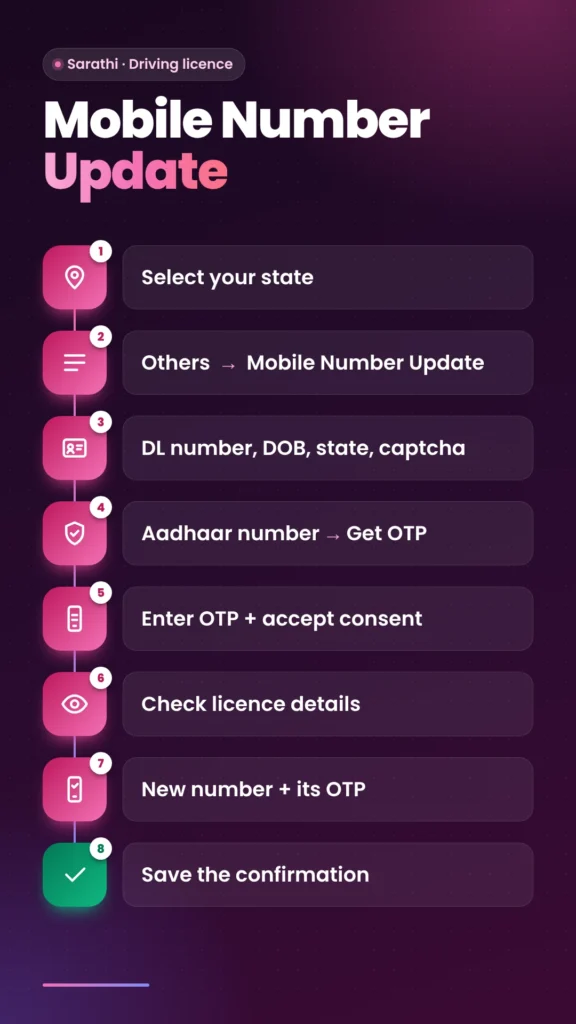
The change happens under Others after you select your state. You enter your licence details, prove your identity with an Aadhaar OTP, and then confirm the new number. Expect two OTPs if your new number differs from your Aadhaar number.
- Open sarathi.parivahan.gov.in and select your state.
- Open Others → Mobile Number Update.
- Enter your driving licence number, date of birth and state, then the captcha.
- Choose Aadhaar authentication, enter your Aadhaar number and request the OTP.
- Enter the OTP from your Aadhaar-linked phone and accept the consent.
- Check the licence details shown on the screen.
- Enter the new mobile number, and confirm it with the OTP sent to that number.
- Save the confirmation shown on the screen.
Parivahan also shows an Update Your Mobile Number notice on its home page, with separate routes for Sarathi (licence) and Vahan (vehicle). Use the Sarathi route for your licence.
When the update doesn’t go through
Most failures come down to the OTP or a mismatch in details. Find your problem below and fix that one cause. Don’t keep resubmitting the form; repeated attempts with the same mistake only reset it.
The Aadhaar OTP doesn’t arrive
The OTP goes to your Aadhaar-linked phone, so check that phone, not the new one. Sarathi’s own pages say an unreceived OTP can be due to DND settings or network non-delivery. Wait a few minutes before asking again, and contact your RTO if it keeps failing.
The form can’t find your licence
The licence number or date of birth doesn’t match the record. Type the number without spaces, and use the date of birth printed on the licence, not the one you remember. If your licence was renewed or changed in another state, choose that state.
The name on Aadhaar and the licence differ
A spelling difference can make Aadhaar authentication fail. Fix the error first, on Aadhaar or on the licence, whichever is wrong. If you can’t, the RTO can approve the change after checking your documents.
The page shows 403 Forbidden
You opened a saved link to the form. Start from the state-selection page again and use the menu; Sarathi refuses direct links to inner pages.
Your vehicle’s RC needs its own update
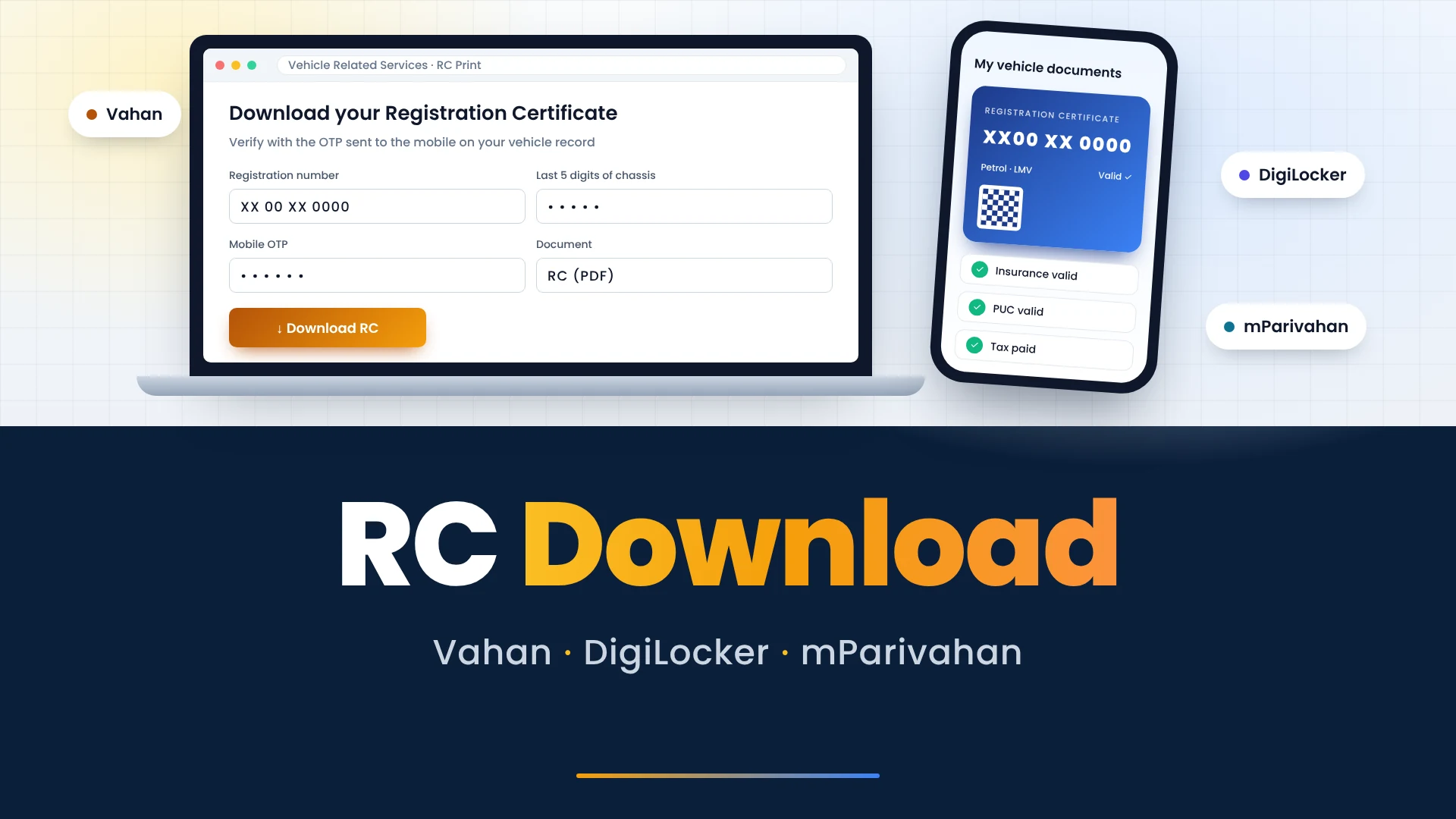
Changing the number on your licence doesn’t touch your vehicle record. The RC lives on Vahan, a separate database, and its mobile number is changed there with the registration number, chassis number and engine number. Do both if the same old number is on each.
The Vahan route also uses an OTP on your Aadhaar-linked phone. Once the RC number is right, you can download your RC with OTPs reaching the correct phone.
After the number changes
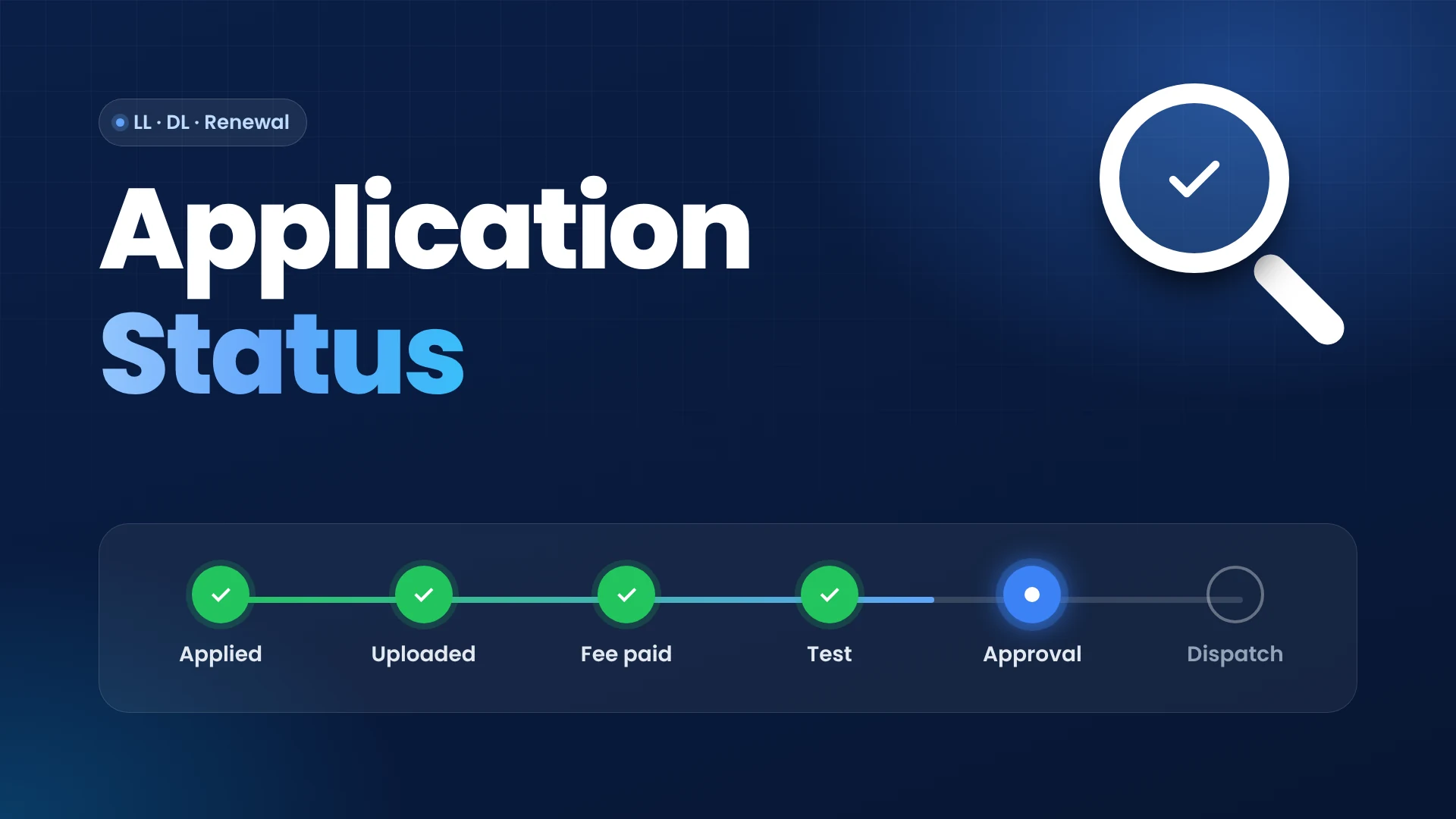
Test the new number on the service you were stuck on. If an OTP failed earlier while you were checking an application, try again now; our page on reading your application status shows the lookups that use your mobile number.
The transport department has sent SMS reminders asking people to update their number. Treat any such message as a reminder only: type sarathi.parivahan.gov.in yourself instead of tapping a link, and never share your OTP with a caller. Our sarathi parivahan status page lists the government sites to use.